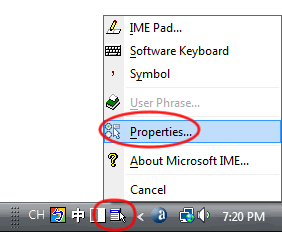
There are two options for adding a traditional character (fanti) pinyin input method:
- Use the "Chinese (PRC)" IME that we just installed in step #1 , making a change in the Options menu for traditional characters.
- Add the "Chinese (Taiwan)" IME, which you can then access via the Language Bar or keyboard shortcut when you want traditional characters.
Using the Chinese (PRC) Pinyin IME for fanti zi:
To set the Chinese (PRC) IME to traditional characters, do the following:
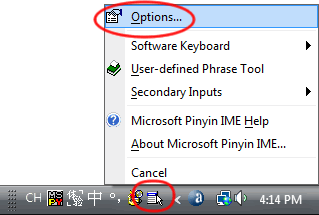 With the Language Bar on CH/MSPY,
- Click the Options Menu icon
- Then click "Options..."
(See the screen shot to the left.)
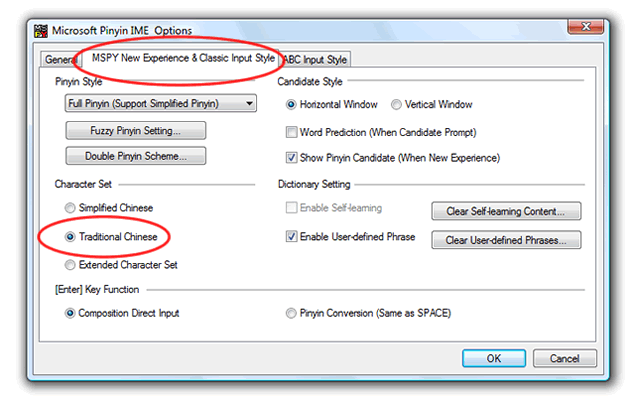
Then, in "Microsoft Pinyin IME Options":
- Click the "MSPY New Experience & Classic Input Style" tab
- Under "Character Set", select "Traditional Chinese"
- Click the "OK" button
 The advantage of using the Chinese (PRC) MSPY input method editor for traditional
characters is that the "New Experience" input style is, in my humble opinion, far
more sophisticated and easier to use.
The advantage of using the Chinese (PRC) MSPY input method editor for traditional
characters is that the "New Experience" input style is, in my humble opinion, far
more sophisticated and easier to use.
The disadvantages of using Chinese (PRC) for traditional characters are:
- It doesn't seem to support "Self-learning" (sorting characters and phrases in the candidate window according to your usage) in traditional character mode. Notice that in the screenshot above, "Enable Self-learning" is grayed out.
- You will not be able to quickly switch between simplified and traditional via a keyboard shortcut or the Taskbar button; you will have to do it in no less than five (5) clicks via the Language Bar's Options.
- You will not have other input methods available in Taiwan, including zhuyin / bopomofo, Cangjie, etc. (This does not mean you cannot write out standalone Zhuyin with the PRC keyboard however. It is in the soft keyboards, just as in XP.)
- There are times when the system gets confused, especially when you are also working in simplified characters: it starts out in a simplified font anyway, and won't let you change that line to a traditional font. If this happens to you, I suggest erasing the entire line or even opening a new document and starting over. (This has also happened to me when switching between "Chinese (PRC)" and "Chinese (Taiwan)", so I probably shouldn't blame "Chinese (PRC)" for this alone.
Using the "Chinese (Taiwan)" Pinyin IME for fanti zi:
This is how to add the "Microsoft New Phonetic IME" and set the input preferences for pinyin:
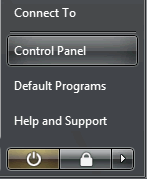 Open the "Regional and Language Options" control panel:
- Click on the Windows Start menu.
- Click on "Control Panel". (See the screen shot at left.)
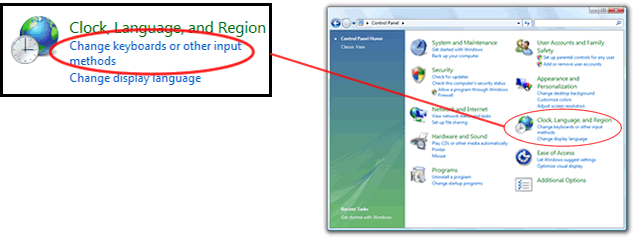
- In Control Panels Home, find "Clock, Language and Region"
and click on "Change keyboards or other input methods." (See screen shot
#1 below.)
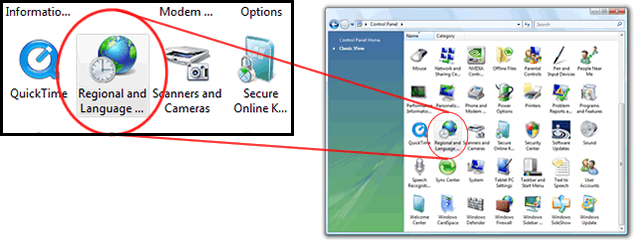
- or, if you are in Control Panels Classic View, Find and double-click on the "Regional and Language Options" icon. (See screen shot #2 below.)
1. Click here in Control Panels Home:
2. Or double-click here in if you are in Control Panels "Classic View":
When the "Regional and Language Options" control panel appears:
- Click the "Change keyboards..." button. (Don't worry, despite the name of this button your English keyboard will remain available at all times after we're done.)

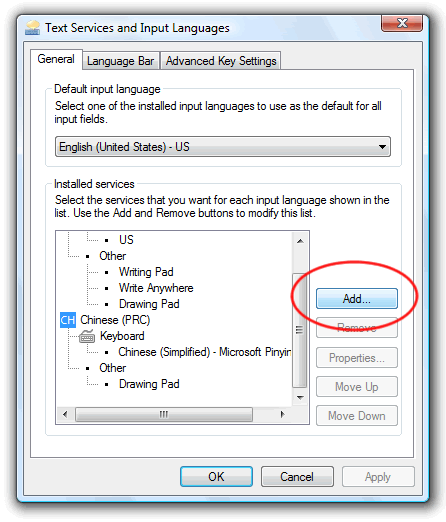
When "Text Services and Input Languages" appears:
- Click on the "Add..." button:
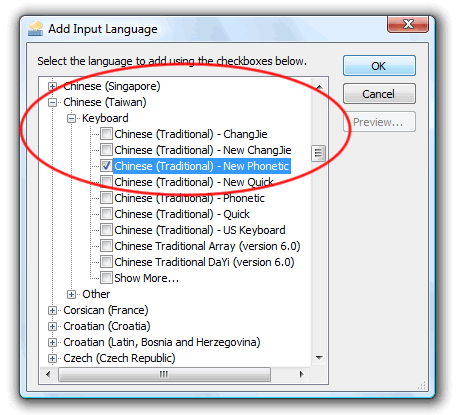
When "Add Input Language" appears:
- Scroll down to "Chinese (Taiwan)".
- Click on the plus signs next to "Chinese (Taiwan)" and "Keyboard".
- Click the checkbox to select "Chinese (Traditional) - New Phonetic".
- Click the "OK" button.
You can click the Add button again to select more input methods, but most of the others are more appropriate for professional speed typists. Waiguoren - and the average Chinese user - usually don't want to go there. However, I will cover zhuyin ("bopomofo") input later.
To set the New Phonetic IME to the Pinyin input method, do the following:
- Click once on the name of the input method, "Chinese (Traditional) - New Phonetic" to select it, then click on the "Properties" button. (Note: These settings can also be accessed later via the Options menu in the Language Bar.)
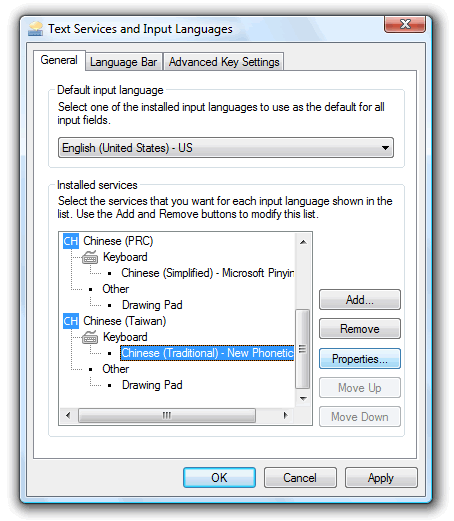
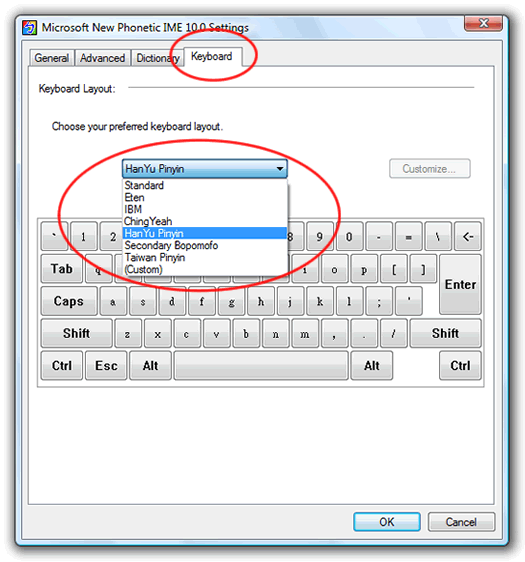
In "Microsoft New Phonetic IME 10.x Settings",
- Click the "Keyboard" tab
- In the pull-down menu under "Choose your preferred keyboard layout", select "HanYu Pinyin"
- Click OK, and OK again.
In the Taskbar, in the Language bar at the lower-right of your screen, you will now find a "CH" option for "Chinese (Taiwan)":
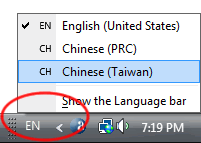
When Chinese (Taiwan) is selected, if you click the Tool Menu icon at the far right, you can click "Properties" in the menu to get adjust this IME's settings, including switching keyboards again or setting other preferences: